How to Set Up Multi-Currency on Shopify (UAE Merchant Guide)
.avif)

How to Set Up Multi-Currency on Shopify (UAE Merchant Guide)
Shopify multi-currency setup depends on one detail almost every tutorial skips: native checkout in multiple currencies only works if you're on Shopify Payments or Adyen.
If you're not, and most UAE and wider GCC merchants aren't, you can still show localized prices, but customers get charged in your base currency at checkout unless you add a separate solution.
Both paths are covered here, so you can find the one that actually applies to your store.
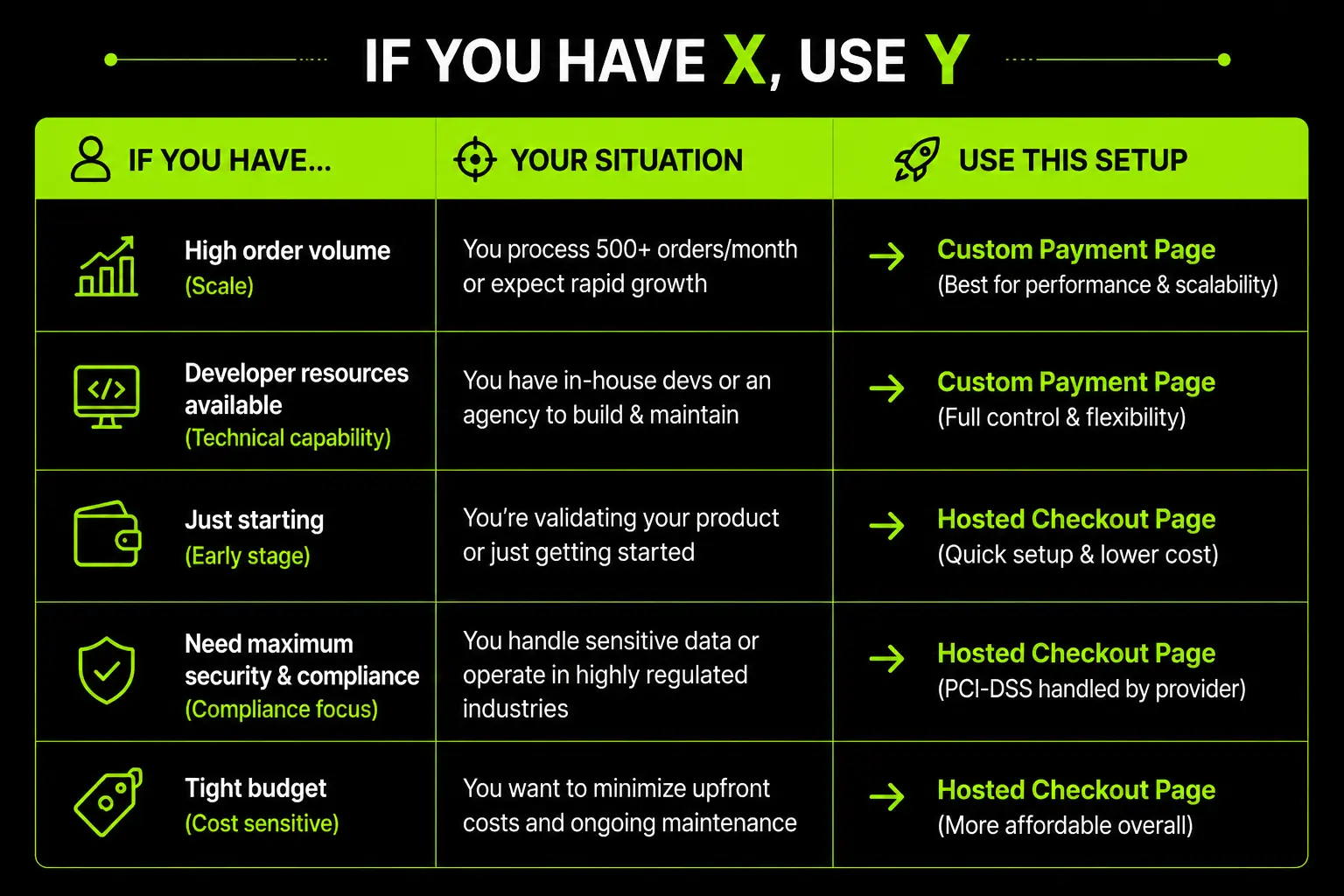
What "Multi-Currency" Actually Means on Shopify (Four Overlapping Things)
"Multi-currency" gets used to describe four genuinely different Shopify features, and most guides jump straight into setup steps without ever untangling which one the reader actually needs.
That confusion wastes real setup time, especially for merchants who follow a full tutorial only to discover halfway through that the feature they just configured requires something they don't have.
Shopify Payments Multi-Currency vs. Shopify Markets vs. Managed Markets vs. Third-Party Apps
Shopify Payments multi-currency is the native checkout feature that actually charges a customer in their local currency, and it only works if Shopify Payments or Adyen is your active payment processor.
Shopify Markets is the free, built-in tool included on every plan for managing international pricing, currency display, and market-specific settings, but the checkout-currency piece of it inherits the Shopify Payments requirement above.
Managed Markets, formerly known as Markets Pro, is a paid upgrade on top of Shopify Markets that adds automated duties and tax calculation, fraud protection, an exchange rate guarantee, and fulfillment partnership, at an additional cost per order.
Third-party currency apps sit outside all of the above, built by independent developers, and they range from simple price-display tools to more complete checkout workarounds, with wildly different capabilities depending on which app you pick.
Why This Confusion Wastes Setup Time: Pick the Right One Before You Start
Most merchants who hit a wall with multi-currency didn't misconfigure anything. They configured Shopify Markets correctly and then discovered, often from a customer complaint rather than their own testing, that checkout wasn't actually charging in the currency the storefront displayed.
That gap exists because Shopify Markets and Shopify Payments multi-currency are two different features that happen to share a settings area, and Shopify's own interface does not make the dependency obvious until you're deep into configuration.
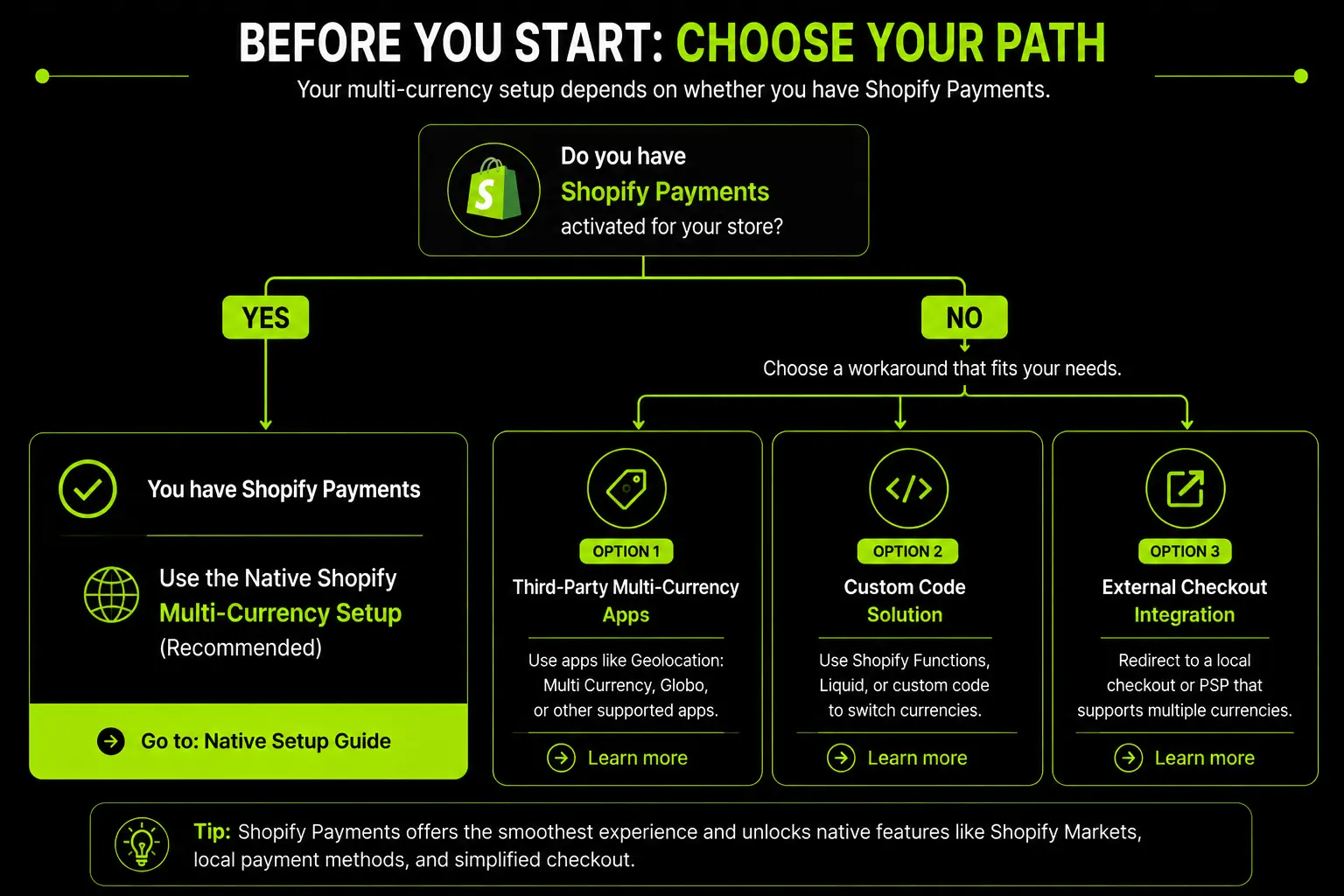
Which Path Applies to You:
Before You Start: Check This First
This is the section most tutorials skip, and it is the one that actually determines which of the rest of this guide applies to you.
Do You Have Shopify Payments? Here's Why It Changes Everything
Shopify's own documentation is direct on this point: processing payments in multiple currencies is available only to stores using Shopify Payments or Adyen as their payment processor.
If you use a different provider, every customer in every market pays in your store's default currency, regardless of what price they saw on the product page.
This single dependency is the reason the search cluster around "Shopify multi currency without Shopify Payments" exists at all, and it's a real, recurring pain point across merchant forums, not an edge case.
The UAE and GCC Reality: Shopify Payments Isn't the Default Here
Shopify Payments has historically not been available to UAE-based merchants, and as of 2026 it has only entered early access for a limited set of Shopify Plus stores under a controlled rollout, not a general release.
Most UAE and wider GCC merchants, on Basic, Shopify, or Advanced plans, are running a third-party gateway like Telr, PayTabs, or Stripe instead. If that describes your store, native Shopify Markets checkout-currency conversion is not available to you today, no matter how correctly you configure it.
This directly connects to the gateway decision covered in how to choose a payment gateway for UAE ecommerce, since your gateway choice and your multi-currency options are two sides of the same underlying constraint.
What This Means Practically: Local Pricing, but Base-Currency Checkout
This is a common Shopify Markets + third-party gateway problem.
A UAE merchant can configure Shopify Markets to display AED, USD and EUR based on the shopper's location.
The storefront looks correct, but checkout can still charge the customer in AED if the store uses a third-party gateway instead of Shopify Payments.
What the Customer Experiences
The shopper browses the store in USD or EUR, sees product and cart prices in that currency, and expects to pay the same way.
But at checkout, the payment gateway processes the transaction in AED. The customer suddenly sees a different currency and may question why the final amount has changed.
This can lead to checkout confusion, support requests and higher cart abandonment. The issue is particularly difficult to diagnose because Shopify Markets can make the storefront appear fully localised even when the payment gateway doesn't support the same currency at checkout.
The Hidden Cost: Currency Conversion
The impact isn't limited to checkout friction.
When a customer's card is charged in a different currency from the one they expected, their bank or card issuer may apply a less favourable exchange rate, foreign transaction fee, or currency-conversion markup.
A shopper who expects to pay $100 USD could therefore end up paying more after their bank converts the AED charge.
These additional costs typically happen on the customer's bank or card side, so the merchant may never see them directly.
What to Check Before Choosing a Gateway
Don't stop at "multi-currency supported." Confirm whether the gateway supports local-currency checkout, not just local-currency price display.
Also check how it handles payment processing, settlement, exchange rates, and international cards.
The key distinction is simple: your storefront can display a customer's preferred currency without the gateway necessarily charging them in that same currency.
Always verify that currency display and currency charging work together before launching international Shopify Markets.
Setting Up Native Multi-Currency for Shopify Payments
If you're using Shopify Payments or Adyen, you can manage currencies through Shopify Markets. The setup involves more than simply adding currencies; you also need to configure exchange rates, pricing rules, and how customers select their currency.
Step 1: Enable Shopify Payments and Confirm Eligibility
Before configuring Markets, make sure Shopify Payments is fully active.
Missing bank details or an unverified business profile can prevent multi-currency features from working, even if the options appear in your Shopify admin.
Confirm your Shopify Payments setup is complete before continuing.
Step 2: Set Up International Markets
Go to Settings → Markets and create the markets you want to sell to.
Each market can have its own currency, language, and pricing configuration, providing the foundation for your international selling setup.
Step 3: Add Your Target Currencies
Add currencies based on your actual target markets and customers.
Don't enable every currency Shopify supports just because the option is available. Start with the currencies that are commercially relevant to your business.
Step 4: Choose Automatic or Manual Exchange Rates
Automatic rates use current market exchange rates and include Shopify's currency conversion fee in the displayed price.
Manual rates let you set a specific exchange rate and control when it changes. This can be useful when you want more predictable pricing or have a specific pricing strategy.
For most D2C brands, automatic rates are the simplest default. Use manual rates when you have a clear business reason to control the conversion rate yourself.
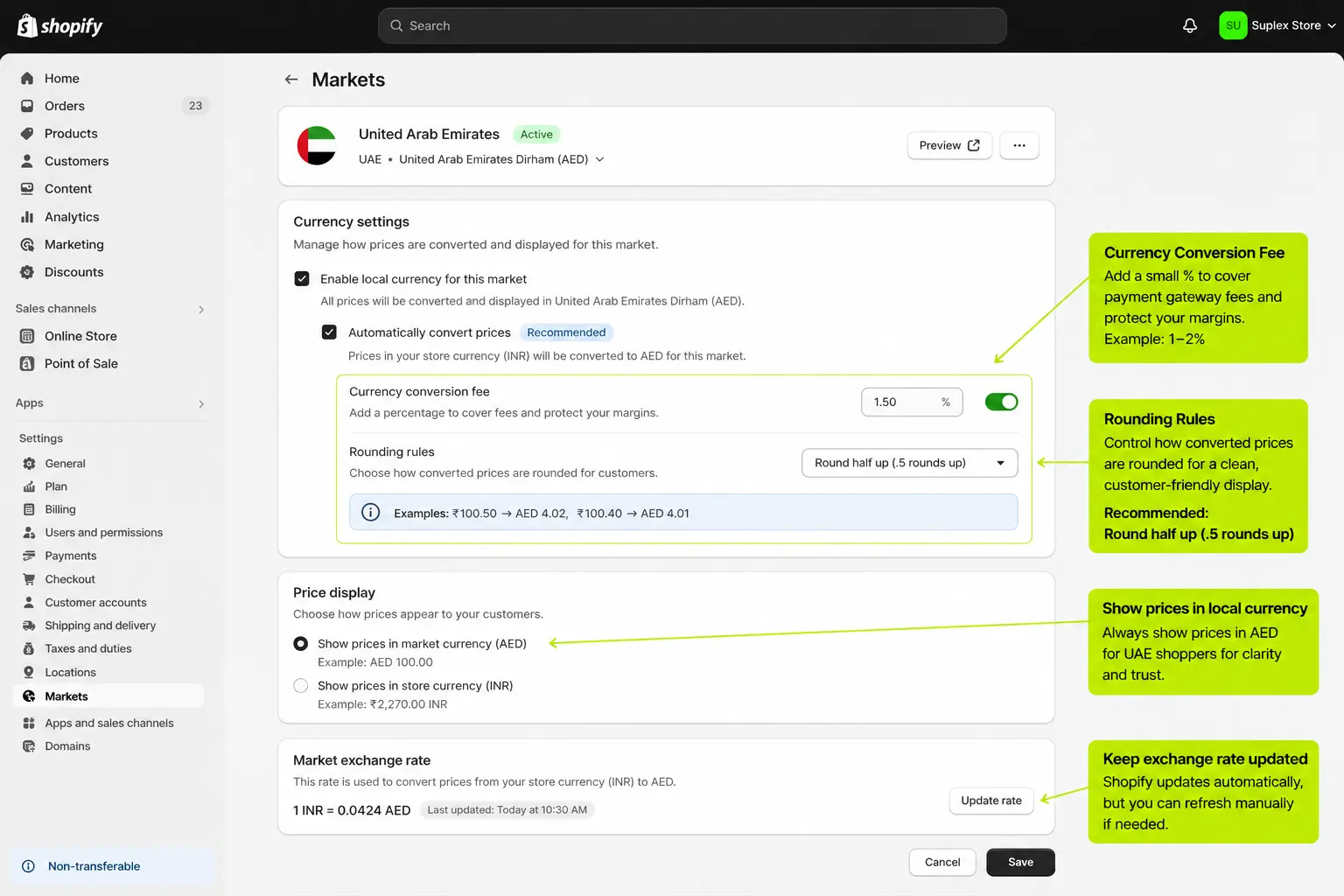
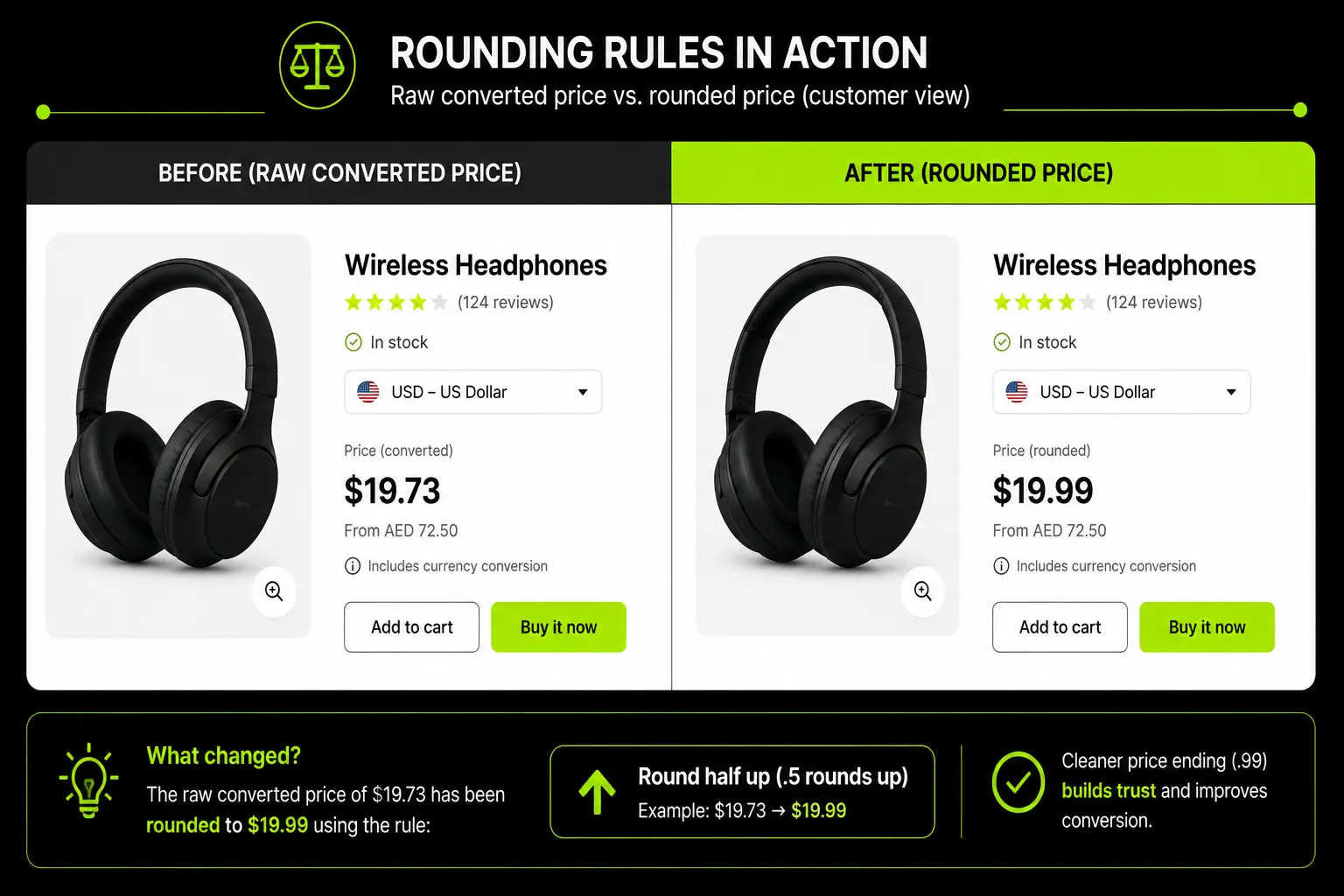
Step 5: Configure Price Rounding
Currency conversion can produce awkward prices such as $19.73 instead of a cleaner $19.99.
Rounding rules let you control how converted prices are presented. This can make international pricing feel more consistent and intentional rather than automatically converted.
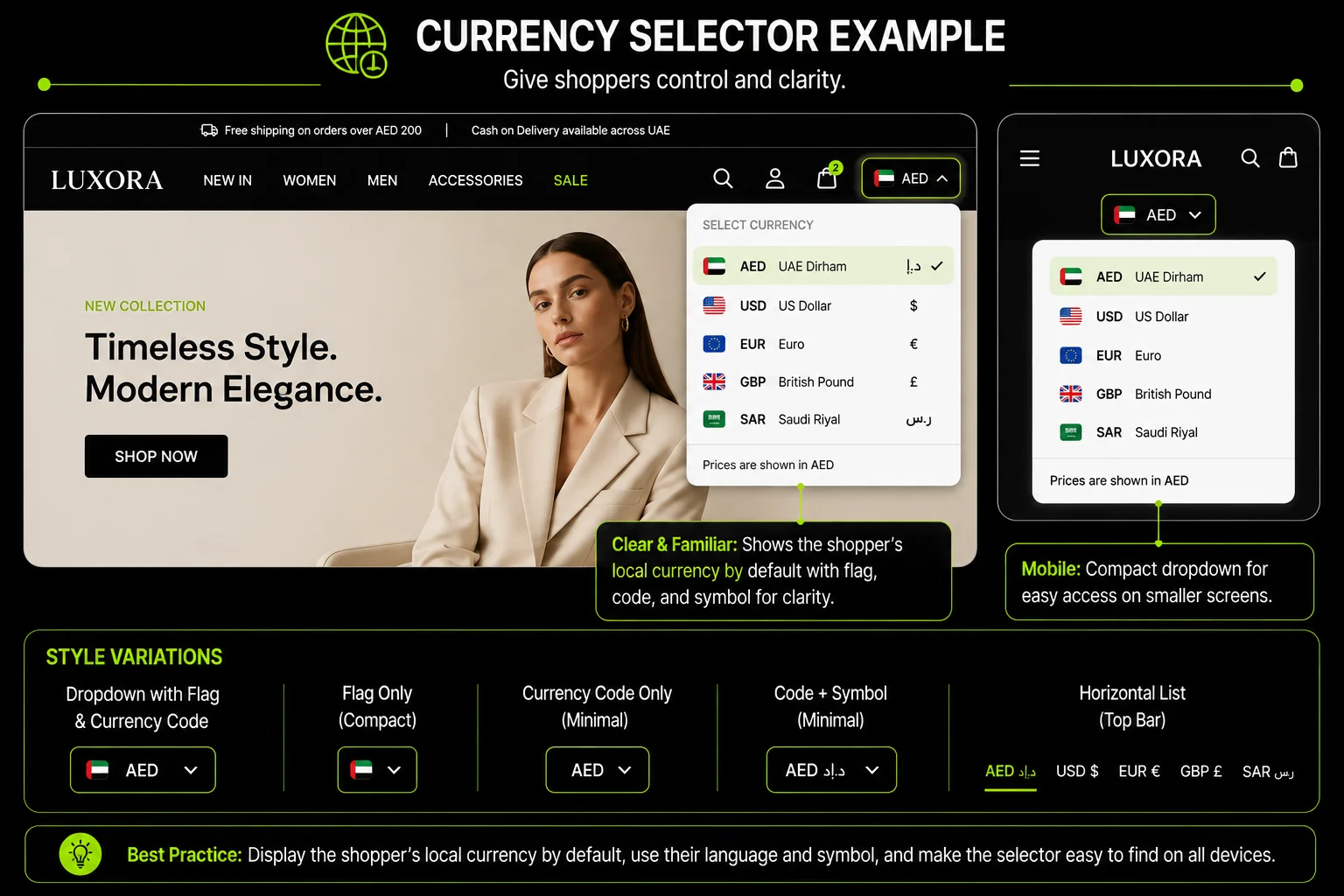
Step 6: Add a Currency Selector
Add a currency selector to your storefront, usually in the header or footer.
Shopify's geo-IP detection can automatically assign a currency based on location, but it isn't perfect. Customers travelling internationally or using a VPN may need to change their currency manually.
Test the selector on both desktop and mobile before launch.
The April 2026 Fee Calculation Change
Shopify changed how its currency conversion fee is calculated on April 6, 2026.
Previously, the fee was calculated on the net order amount after Shopify Payments processing fees were deducted. This meant the effective currency conversion cost could be slightly lower than the stated 1.5% or 2% rate.
Under the new calculation, the fee is applied directly to the gross order amount, before those deductions.
What this means for merchants:
- The stated conversion rate now more closely matches the actual amount charged.
- International payment costs can be slightly higher than under the previous formula.
- Margin models based on pre-April 2026 documentation should be updated.
- The calculation is now more predictable because it isn't affected by the separate processing-fee deduction.
If you're calculating international margins, use the current formula rather than relying on older Shopify guides or fee examples.
Checkout Currency vs. Payout Currency
Don't confuse the currency your customer pays in with the currency you receive in your bank account.
A customer might complete checkout in USD, while your Shopify Payments account pays you out in AED.
Your payout currency is configured separately based on your Shopify Payments and bank-account setup, and Shopify handles the applicable conversion during the payout process.
This means you can encounter two different currency-related costs or conversions:
Customer-side conversion: The conversion associated with processing the customer's payment in their chosen checkout currency.
Payout conversion: The conversion between the payment currency and your configured payout currency.
When reconciling Shopify Payments reports, treat these as separate currency flows rather than assuming the same conversion fee has been charged twice.
Setting Up Multi-Currency Without Shopify Payments
This is the section most competing content skips entirely, or covers only through frustrated forum threads rather than an actual comparison. If you're on a third-party gateway, here's what your real options are.
What Shopify Markets Can and Can't Do Without Shopify Payments
Shopify Markets remains fully usable for market structure, localized content, and price display, even without Shopify Payments.
What it cannot do is charge a customer in a currency other than your store's base currency at checkout, since that specific function is gated behind Shopify Payments or Adyen.
This means Shopify Markets alone solves visibility, not payment, and conflating the two is exactly where most UAE merchants get stuck.
Option 1: Third-Party Currency Display Apps (Price Localization Only)
Display-only apps show converted, localized prices on the storefront based on visitor location, improving the browsing experience without touching what actually happens at checkout.
These apps are the lowest-effort option and solve the visibility half of the problem cleanly, but they do not remove the underlying issue: a customer who was browsing in EUR will still be charged in your base currency once they reach payment, unless the app is explicitly built to also route checkout currency, which most pure display apps are not.
Option 2: Third-Party Checkout Solutions That Enable True Local-Currency Payment
A smaller category of apps and payment-adjacent tools genuinely enable local-currency charging even without Shopify Payments, typically by working directly with your existing gateway's own multi-currency capabilities rather than relying on Shopify's native feature.
This is the option that actually solves the problem merchants are searching for, and it requires more careful evaluation, since compatibility depends heavily on which specific gateway you're using and how that gateway's own currency handling works.
Given how frequently apps in this category launch, get acquired, or shut down, verify any specific app's current capability and compatibility with your gateway directly against its current app store listing before committing, rather than relying on any single guide, including this one, as the final word.
Option 3: Separate Stores Per Currency: When It's Actually Worth the Overhead
Running a fully separate Shopify store per currency or per major market is the most complete workaround, since each store can be configured with its own currency, its own local gateway and its own checkout entirely independent of Shopify's multi-currency feature.
It is also the most operationally expensive option, since it means duplicating inventory sync, catalog management and marketing tracking across multiple store instances.
This approach tends to make sense only once a specific market's order volume genuinely justifies the ongoing overhead, not as a starting point for testing demand in a new currency.
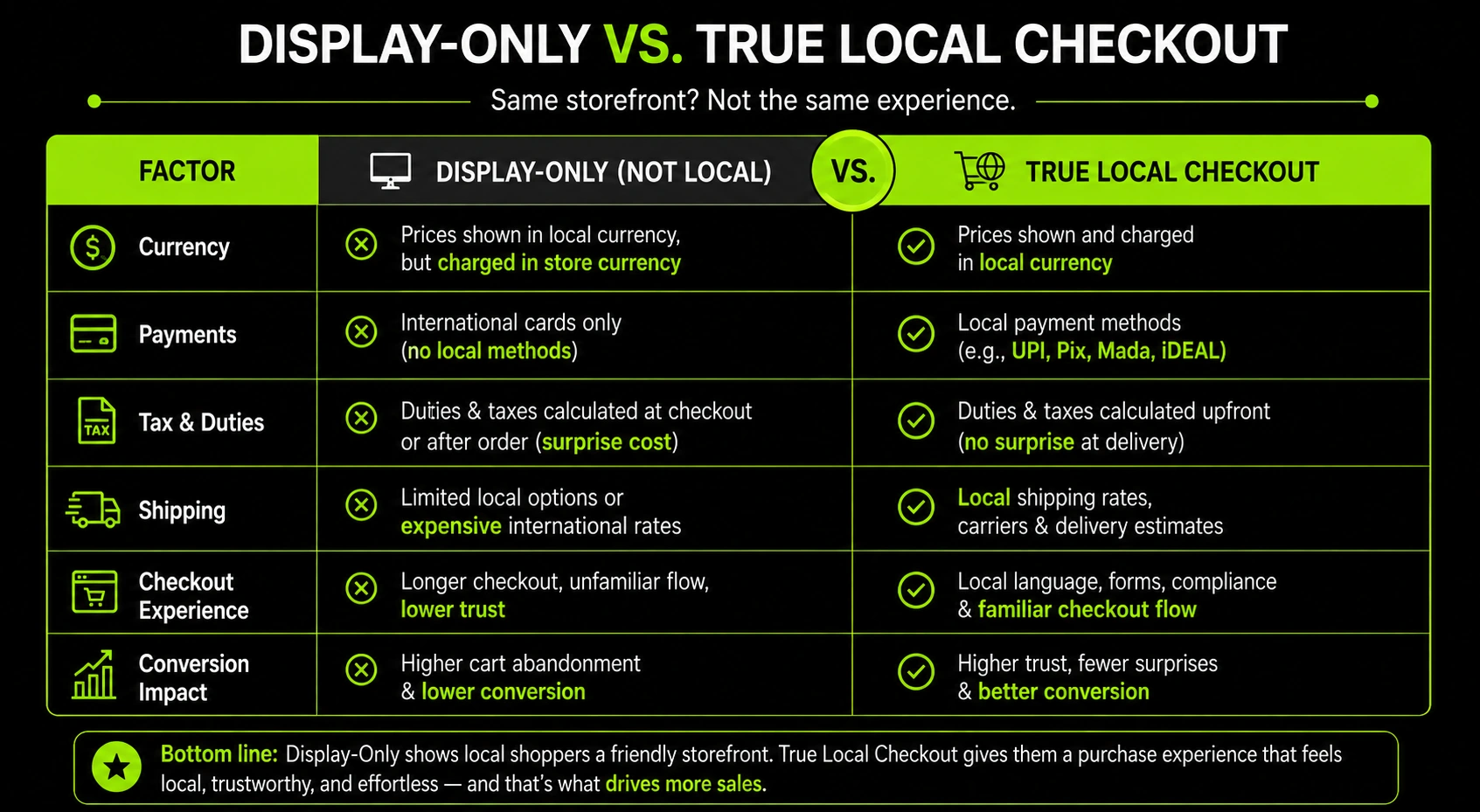
Comparing the Three Options: What Each Actually Solves
The core confusion in this entire topic is that many workarounds solve visibility, not the actual charge-in-local-currency problem merchants are trying to fix.
This table exists specifically to make that distinction clear before you choose a path.
Display-Only vs. True Local Checkout:
For most GCC-based D2C merchants, evaluating which of these three paths fits requires understanding your specific gateway's own currency capabilities in detail, which is genuinely deeper technical work than a generic app install.
This is where a properly scoped ecommerce store setup or international ecommerce setup engagement earns its cost, since choosing the wrong workaround here typically means redoing the work later once the gap surfaces in real customer complaints.
Choosing Which Currencies to Add: Strategy, Not Just Mechanics
Don't add currencies simply because Shopify supports them.
Your currency strategy should be based on where your customers are, how much they buy, and whether you can maintain accurate local pricing.
Start With Your Existing Traffic and Orders
Before adding a currency, check your analytics by country and region.
If a market is already generating meaningful traffic or orders while customers are paying in your base currency, that's a stronger signal to introduce local-currency pricing than a market you simply hope to enter in the future.
Use actual customer data first. Then expand into new currencies as demand develops.
Pay Attention to GCC Currency Decimal Places
GCC currencies require an important technical check: not every currency uses two decimal places.
USD, EUR, and AED use two decimal places, while:
- KWD (Kuwaiti Dinar): 3 decimal places
- BHD (Bahraini Dinar): 3 decimal places
If your Shopify currency and rounding settings assume two decimal places, KWD or BHD prices can display or calculate incorrectly.
This is easy to miss because the storefront can look normal during a basic review while creating problems in actual pricing or transactions.
Before launching any GCC currency beyond AED, verify its decimal, rounding, and display settings.
Don't Add More Currencies Than You Need
A selector with 10–12 currencies may look globally sophisticated, but it can create unnecessary friction for shoppers who only need one.
For most brands, three or four currencies tied to verified customer demand are more useful than a long list of rarely used options.
Every additional currency also creates an ongoing maintenance requirement. You need to review its:
pricing → rounding → exchange rate → customer demand → performance
So treat currency selection as an ongoing commercial decision, not a one-time Shopify setting.
Start with the currencies your customers actually use, then add others when traffic, orders, or market expansion justify them.
Testing and QA Before You Launch Multi-Currency
Treat launch as a checkpoint, not the finish line.
A storefront can display the correct local currency while checkout charges the customer in your base currency. Testing the complete customer journey is the best way to catch this before launch.
1. Test Price Display Across Markets and Devices
Test your storefront from multiple locations using a VPN or geo-testing tool.
Check that prices display correctly for each configured market on both desktop and mobile. Then test the manual currency selector to make sure customers can override Shopify's geo-IP detection when necessary.
2. Test the Actual Checkout Currency
This is the most important test.
Don't stop after confirming that product and cart prices display correctly. Run an actual test transaction, or use your gateway's test mode where available, and check the currency shown at the final payment step.
The checkout currency should match the currency the customer saw throughout the shopping journey.
If the storefront shows USD but the payment gateway charges AED, you've identified a gateway limitation, not a Shopify Markets display issue. At that point, you'll need to evaluate the appropriate workaround rather than trying to fix it through Market settings.
3. Monitor Checkout Completion by Market
After launch, don't rely only on your overall checkout completion rate.
Segment performance by market and currency.
If one market has a noticeably lower completion rate than others, investigate whether checkout currency is contributing to the gap especially when customers browse and shop in one currency but are charged in another.
This gives you a measurable signal instead of relying solely on customer complaints or support tickets.
4. What to Do When You Find a Currency Gap
If testing reveals a mismatch, check the payment gateway before installing another app.
Many currency-display apps can change what shoppers see without changing the currency your gateway actually charges.
Adding one without understanding the underlying limitation can therefore add complexity without solving the problem.
First confirm what your gateway supports natively. Then choose the appropriate workaround based on the actual limitation.
The goal isn't simply to make the storefront look local. Your entire journey—from product page to final payment should behave consistently in the customer's chosen currency.
How Suplex Handles Multi-Currency Setup for GCC Merchants
Multi-currency setup isn't a one-size-fits-all Shopify configuration.
GCC merchants often face Shopify Payments limitations, making the right solution dependent on their payment gateway, target markets, currencies, and checkout setup.
1. Build Multi-Currency Into the Store
Suplex evaluates multi-currency as part of the broader Shopify implementation, not as a simple app installation.
During custom Shopify theme development, the setup can include:
- Currency selector placement
- Price rounding
- Market-specific storefront behaviour
- Currency display across key shopping pages
This keeps the experience consistent instead of adding unrelated apps after the store is built.
2. Validate the Setup After Launch
Getting the storefront to display the correct currency is only part of the job.
D2C data analytics can track checkout completion by market and currency, helping identify unusual drops in performance that may indicate a currency or checkout issue.
3. Focus on the Complete Customer Journey
The goal isn't simply to show AED, USD, or EUR on the product page.
Your currency setup should work consistently across:
Product page → Cart → Checkout → Payment → Analytics
This approach helps GCC merchants identify currency limitations early and avoid turning a small configuration gap into ongoing lost revenue.
Common Multi-Currency Mistakes on Shopify
Frequently Asked Questions
Does Shopify multi-currency require Shopify Payments?
Yes, for true local-currency checkout. Shopify Markets can display converted prices without Shopify Payments, but customers will still be charged in your store's base currency unless you're using Shopify Payments, Adyen, or a compatible third-party checkout solution.
Is Shopify Payments available in the UAE?
Shopify Payments has entered early access in the UAE, but only for select Shopify Plus merchants under a controlled rollout, not a general release. Most UAE-based merchants still can't use it, which is why native multi-currency checkout doesn't fully work for them. They need a third-party gateway and, separately, a currency solution built around that gateway.
How do I show prices in local currency without Shopify Payments?
Shopify Markets and several third-party apps can display converted prices based on visitor location. This solves visibility but not payment. Customers will still be charged in your base currency at checkout unless you add a compatible checkout solution.
How many currencies should I add to my Shopify store?
Start with the currencies matching your actual traffic and order data, usually three to five. Adding currencies with no real demand adds clutter to your currency selector without improving conversion.
Why do my converted prices look strange, like $19.73 instead of $19.99?
This usually means rounding rules aren't configured in Shopify Markets. Set rounding rules per currency so converted prices land on clean, psychologically consistent price points instead of raw exchange-rate math.
What's the difference between Shopify Markets and Managed Markets?
Shopify Markets is the free, built-in tool for international pricing and currency display. Managed Markets, formerly Markets Pro, adds features like automated duties, taxes, and compliance handling, at additional cost.
Does Kuwaiti Dinar (KWD) need special handling in Shopify?
Yes. KWD and a few other Gulf currencies use three decimal places instead of two. Confirm your rounding and display settings handle this correctly, since default two-decimal formatting will display incorrect amounts.
Hi, I’m Rishabh Jain
I believe great design has the power to shape perception, build trust, and move businesses forward. That belief is what led me to found Suplex Design Studio, a global branding and packaging studio working with FMCG and D2C brands across markets.I started suplex at 25 with a clear intent, to create design that is strategic, thoughtful, and commercially meaningful. By 28, the studio had scaled globally, guided by a strong foundation in Integrated Design that I developed during my academic journey in London, where I was honoured with the Dean’s Award.
Over the years, I’ve had the opportunity to work with 100+ brands, from Fortune 500 organizations to family-run businesses, helping them build packaging and brand systems that create recall, relevance, and long-term value.
Suplex’s work has been recognized internationally, including the Manifest Award (2024), the Clutch Global Award (2025), and features on platforms such as Packaging of the World, The Dieline, and the World Brand Design Society.
None of this would be possible without the people behind the work. I’m deeply grateful to the suplex team, whose commitment, creativity, and attention to detail turn ideas into meaningful brand experiences every day.
At the heart of my work is a simple philosophy, design should be intentional, honest, and built to last, and that continues to guide everything we create at suplex.






































Let’s Make It Happen
E-Commerce Success Stories

%201.avif)






.avif)

.avif)
Build Your D2C Business The Right Way
Build It With Suplex.


